Python Basic Video Processing: A Comprehensive Guide to Splitting Videos with MoviePy

When working with video files, it’s often useful to split content based on duration or custom timepoints. Here, we'll explore two Python scripts that leverage the powerful MoviePy library to achieve exactly that. These scripts, cut_video_percentage.py and cut_video_time.py, make it easy to slice videos by percentage or specific timestamps, making them handy tools for a variety of real-world tasks, from content management to automated editing.
Getting Started with MoviePy for Video Splitting
MoviePy is a robust Python library for video editing that allows for easy manipulation of video files without diving deep into lower-level editing frameworks. These scripts are beginner-friendly but effective for basic needs like trimming, splitting, and re-encoding videos, saving you from manually editing video files.
Before you can run the scripts, you’ll need to install the MoviePy library. MoviePy makes it easy to perform various video processing tasks without diving deep into video encoding complexities.
To install MoviePy, you can use pip, which is the standard Python package manager. Run the following command in your terminal or command prompt:
pip install moviepyThis will automatically download and install MoviePy along with any required dependencies.
1. Splitting Videos by Percentage
This script splits a video file into two parts based on a percentage of its total duration. It lets users choose a preset option, such as splitting the video at 10% and 90%, 50% and 50%, and more. This tool is excellent for scenarios where you want to divide videos into specific chunks or discard segments easily.
from moviepy.video.io.VideoFileClip import VideoFileClip# Define the split options
split_options = {
1: (10, 90),
2: (20, 80),
3: (30, 70),
4: (40, 60),
5: (50, 50),
6: (60, 40),
7: (70, 30),
8: (80, 20),
9: (90, 10)
}
# Function to split the video based on the percentage
def split_video(input_video_path, output_video_path1, output_video_path2, percentage):
    # Load the video
    video = VideoFileClip(input_video_path)

    # Get the total duration of the video
    total_duration = video.duration

    # Calculate the split time based on the percentage
    split_time = total_duration * (percentage / 100)

    # Split the video into two parts
    first_part = video.subclip(0, split_time)
    second_part = video.subclip(split_time, total_duration)

    # Save the two parts
    first_part.write_videofile(output_video_path1, codec="libx264")
    second_part.write_videofile(output_video_path2, codec="libx264")

    # Close the video clips
    video.close()
    first_part.close()
    second_part.close()
def main():
# Input video path
input_video_path = r"videos/chat_app_with_firebase.mp4"
# Display the split options
print("Select a split option:")
for index, (part1, part2) in split_options.items():
print(f"{index}. {part1}:{part2}")
# Get the user's choice
choice = int(input("Enter the option number: "))
# Get the split percentages based on user choice
if choice in split_options:
percentage1, percentage2 = split_options[choice]
# Set output file names
output_video_path1 = f"output_part1_{percentage1}.mp4"
output_video_path2 = f"output_part2_{percentage2}.mp4"
# Split the video
split_video(input_video_path, output_video_path1,
output_video_path2, percentage1)
print(f"Video successfully split into: {
output_video_path1} and {output_video_path2}")
else:
print("Invalid choice! Please run the program again.")
if __name__ == "__main__":
main()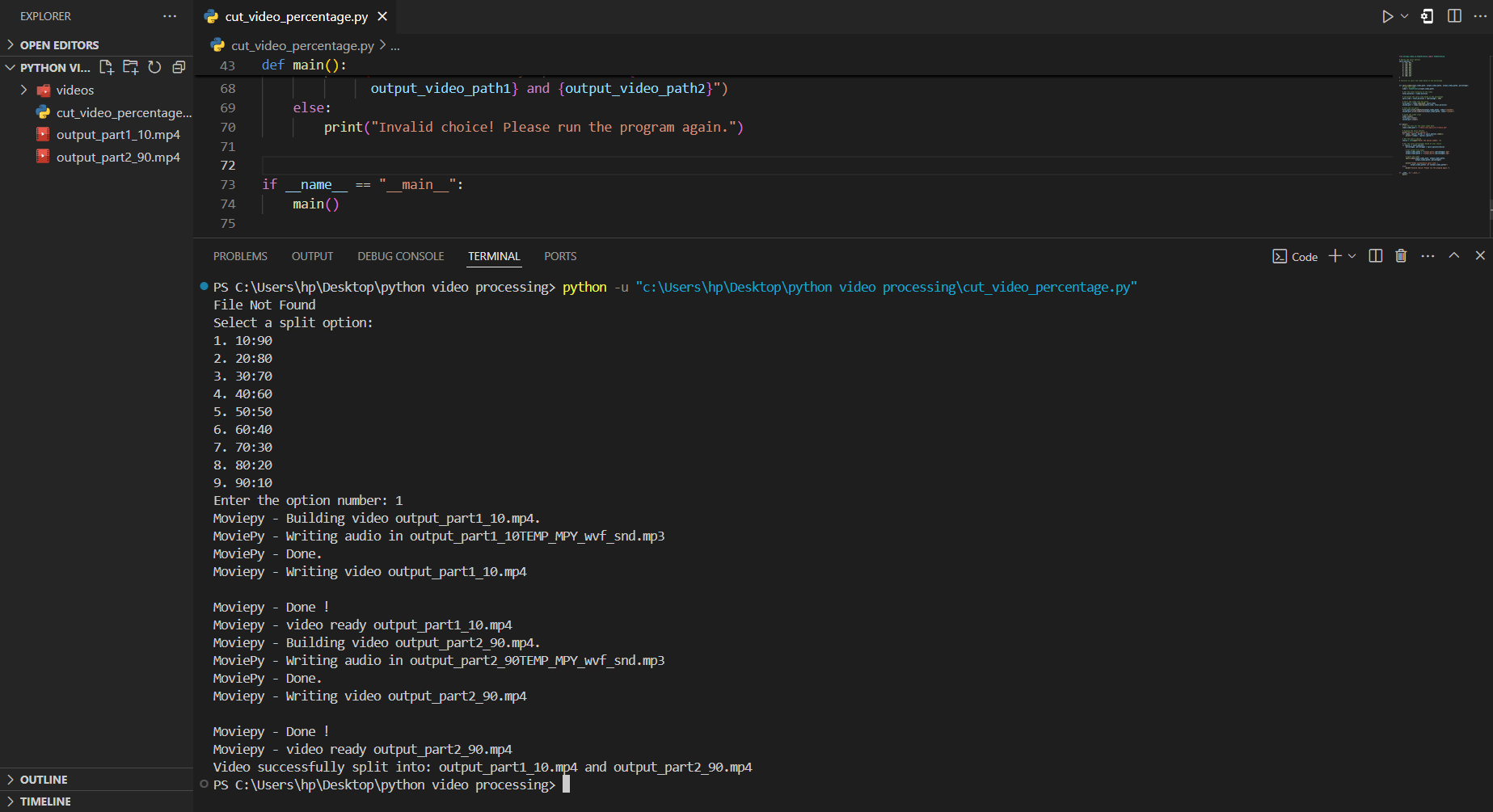
Main Parts of cut_video_percentage.py
Defining Split Options
The script offers several options for splitting percentages:
split_options = {
    1: (10, 90),
    2: (20, 80),
    3: (30, 70),
    ...
}
Here, each option represents how much of the total video will be allocated to each part. Option 1, for example, means the first 10% goes to the first clip, and the remaining 90% to the second.
Splitting the Video by Percentage
The split_video function does the actual work of dividing the video. It takes in the video path, output file paths, and split percentage to determine where the split should happen.
def split_video(input_video_path, output_video_path1, output_video_path2, percentage):
    video = VideoFileClip(input_video_path)
    total_duration = video.duration
    split_time = total_duration * (percentage / 100)
Here, split_time is the time where the video gets split, calculated by multiplying the video’s total duration by the chosen percentage.
User Interface and Main Functionality
The script provides users with a list of options to choose from, sets up file names based on the percentage choice, and saves the two parts:
def main():
    print("Select a split option:")
    ...
    if choice in split_options:
        output_video_path1 = f"output_part1_{percentage1}.mp4"
        ...
The script then displays where the videos were saved, wrapping up the split and helping you easily locate the output files.
2. Splitting Videos at a Specific Time
The cut_video_time.py script is designed to split a video at an exact timestamp (e.g., 1 minute, 36 seconds). This is particularly useful when you know the exact moment where you want the split to occur.
from moviepy.video.io.VideoFileClip import VideoFileClip# Function to convert time in 'min:sec' format to total seconds
def time_to_seconds(time_str):
try:
minutes, seconds = map(int, time_str.split(':'))
return minutes * 60 + seconds
except ValueError:
print("Error: Invalid time format. Please enter time in 'min:sec' format.")
return None# Function to split the video at the specified time
def split_video(input_video_path, output_video_path1, output_video_path2, split_time_seconds):
try:
# Load the video
video = VideoFileClip(input_video_path)
# Get the total duration of the video
total_duration = video.duration
# Check if the split time exceeds the total duration
if split_time_seconds > total_duration:
print("Error: The split time exceeds the video duration!")
return
# Split the video into two parts
first_part = video.subclip(0, split_time_seconds)
second_part = video.subclip(split_time_seconds, total_duration)
# Save the two parts
first_part.write_videofile(output_video_path1, codec="libx264")
second_part.write_videofile(output_video_path2, codec="libx264")
# Close the video clips
video.close()
first_part.close()
second_part.close()
print(f"Video successfully split into: {output_video_path1} and {output_video_path2}")
except Exception as e:
print(f"An error occurred: {str(e)}")def main():
# Input video path
input_video_path = "videos\chat_app_with_firebase.mp4"
# Ask the user for the time to split the video (in min:sec format)
split_time_str = input("Enter the time (in min:sec format ex-1:36) at which to split the video: ")
# Convert the min:sec format to seconds
split_time_seconds = time_to_seconds(split_time_str)
if split_time_seconds is not None:
# Set output file names
output_video_path1 = f"output_part1_{split_time_str.replace(':', 'm')}s.mp4"
output_video_path2 = f"output_part2_after_{split_time_str.replace(':', 'm')}s.mp4"
# Split the video
split_video(input_video_path, output_video_path1, output_video_path2, split_time_seconds)
if __name__ == "__main__":
main()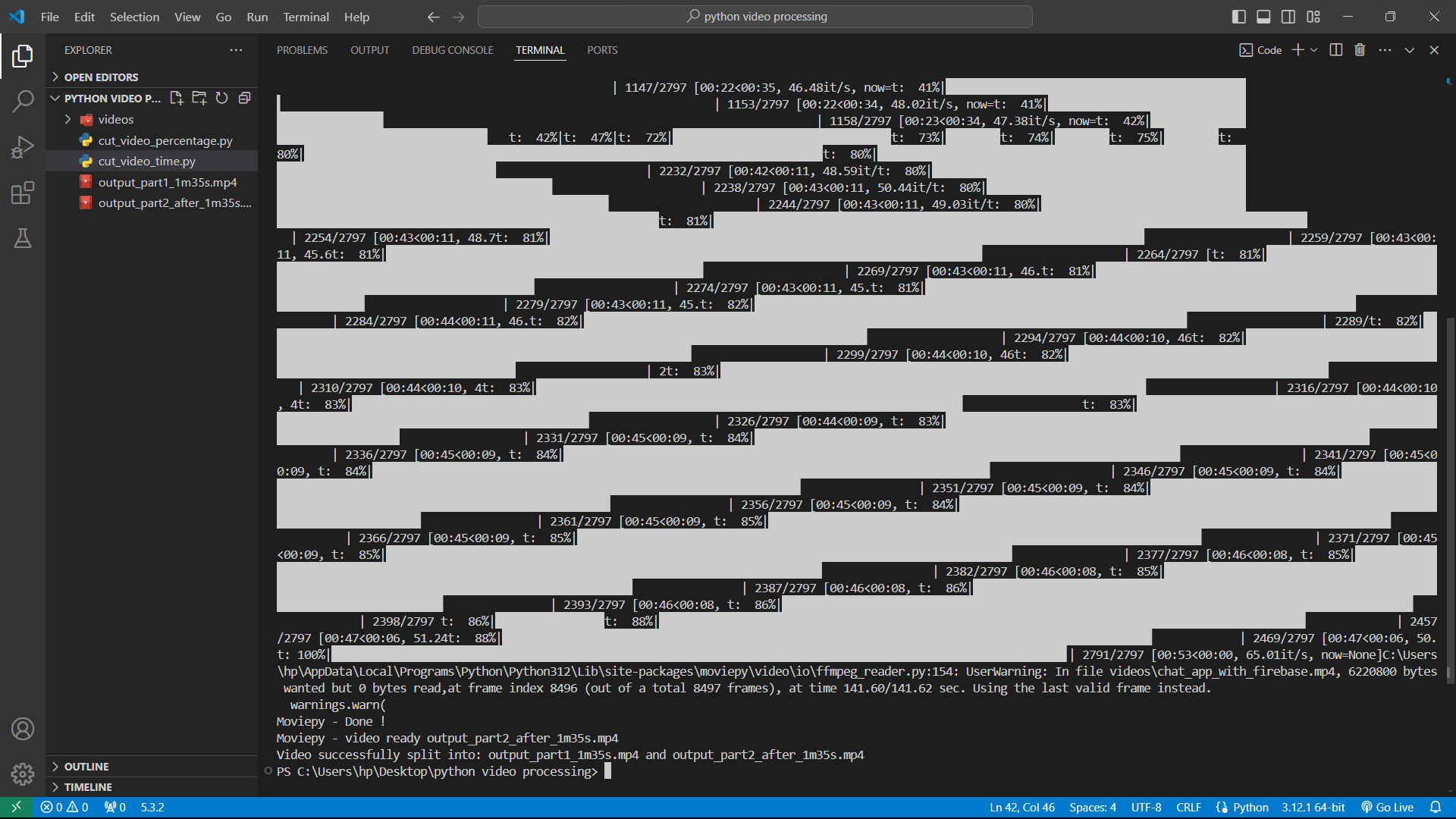
Main Parts of cut_video_time.py
Convert Time to Seconds
Since MoviePy accepts seconds for time management, the script has a utility function to convert a user-friendly “minutes:seconds” format to seconds.
def time_to_seconds(time_str):
    minutes, seconds = map(int, time_str.split(':'))
    return minutes * 60 + seconds
This conversion makes it straightforward for users, as they can simply input timestamps like 1:36, which the script then translates to 96 seconds.
Splitting the Video at the Specified Time
The split_video function in this script takes the specified split time (in seconds) and divides the video accordingly.
def split_video(input_video_path, output_video_path1, output_video_path2, split_time_seconds):
    video = VideoFileClip(input_video_path)
    total_duration = video.duration
    if split_time_seconds > total_duration:
        print("Error: The split time exceeds the video duration!")
        return
    first_part = video.subclip(0, split_time_seconds)
    second_part = video.subclip(split_time_seconds, total_duration)
Before proceeding with the split, the function verifies that the specified time is within the video’s length, ensuring it doesn’t accidentally attempt to split beyond the available content.
User Interface for Time Input
The script prompts the user to enter the split time in min:sec format. It then validates this input and saves the two resulting video parts, naming them based on the specified split time.
split_time_str = input("Enter the time (in min:sec format) at which to split the video: ")
split_time_seconds = time_to_seconds(split_time_str)
if split_time_seconds is not None:
    output_video_path1 = f"output_part1_{split_time_str.replace(':', 'm')}s.mp4"
This approach allows for flexibility in both naming and defining where the video split should happen, making the script accessible to even non-technical users.
These two scripts, cut_video_percentage.py and cut_video_time.py, make video splitting simple and effective. Whether splitting by percentage or at a specific timestamp, these tools are valuable for managing video content quickly and efficiently in Python. The combination of MoviePy’s power and Python’s simplicity makes these scripts a fantastic starting point for anyone looking to handle video content programmatically.
If you’re interested in getting started, make sure to check out the full code at the end, and don’t forget to install MoviePy using pip install moviepy if you haven’t already. Happy editing!